

Issue a transaction receipt
Overview
Transaction receipts can be issued from the OnlinePay Dashboard for any completed transaction and emailed to the customer or merchant. The OnlinePay dashboard includes both merchant and customer copies of receipts on all transactions.
Digital receipts are stored in the OnlinePay dashboard for up to 18 months. These digital copies of the receipts are acceptable in the event of a dispute or chargeback, as they contain all the required information.
The following information is included on receipts:
Site name
Street address
CITY, State Postcode
Country
Phone number
Merchant ID: 12345678
RRN: 180726000384
Date: DD-MM-YYY HH:MM:SS Australia/Sydney
Authorization Code: 123456
Merchant Reference: DefaultMerch or Custom message
Line items (if applicable)
CARD TYPE
CARD NUMBER
Mode: ECOMMERCE/MAIL/PHONE
Transaction Type: SALE/REFUND/CANCEL (see Transaction types and states)
Result: APPROVED/DECLINED/FAILED (Reason code)
Grand Total AUD
Amounts are 'inclusive' of GST
Suppression of Merchant address and/or phone number on receipts
Contact the Merchant Helpdesk to request suppression of your merchant company address and phone number on receipts. The Merchant Address and phone number will appear on all receipts by default unless suppression is requested.
Send a receipt
You can send a customer or merchant copy receipt for individual transactions from the OnlinePay dashboard.
-
Navigate to Commerce > Reporting > Orders/Transactions.
-
Search or filter the list of orders or transactions to locate the transaction for which you want to issue a receipt.
-
Click on the order to view the transaction details.
-
Click Receipts in the details panel.
Where there have been multiple transactions, you will order receipts for each transaction.
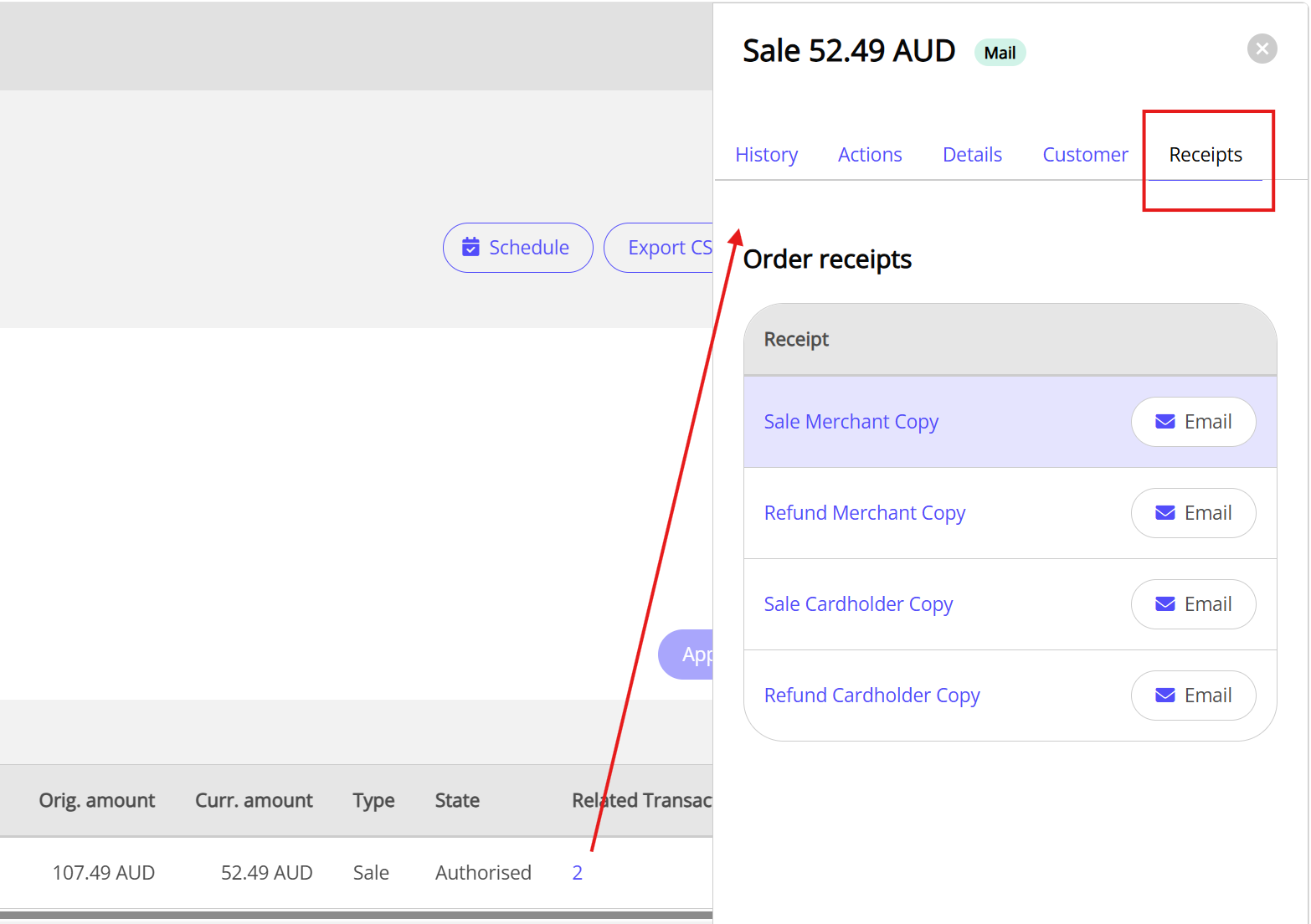
-
Click Email next to the merchant or cardholder receipt to send a copy of the transaction receipt to the required recipient.
Clicking Merchant copy will pre-populate the email address with the merchant's email address. Cardholder Copy receipts require the email address to be input manually.
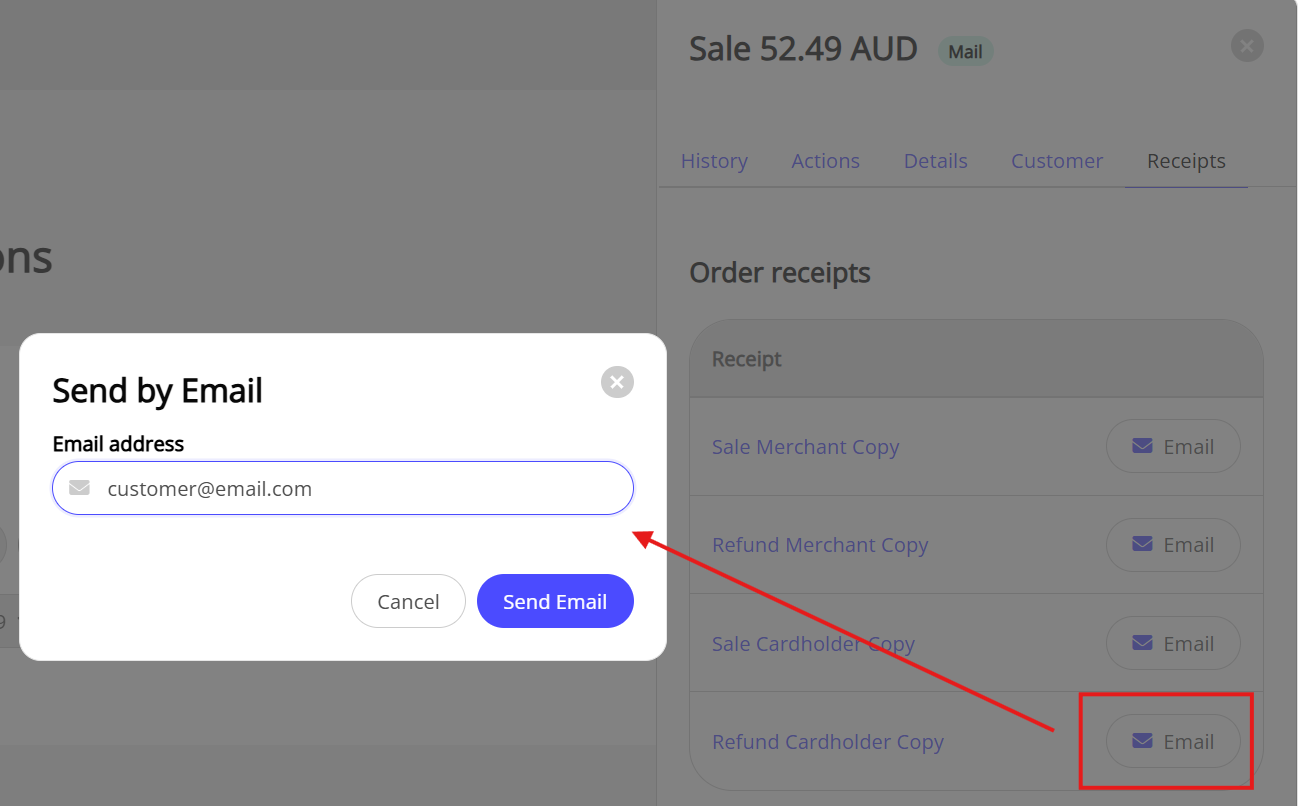
For more information about transaction codes, see Transaction response codes
For more information about transaction states, see Transaction states
Updated 6 days ago