

Processing a refund
Overview
The Merchant Supervisor role can process refunds from the OnlinePay dashboard.
Refunds are only able to be processed against the original purchase for an amount that is the same or less than the original purchase amount. You can perform multiple refunds on a single transaction until the original authorised amount has been refunded completely.
If you have terminal data such as EFTPOS Now transactions on your transaction listing, please note you can view these transactions however refunds at present, need to be performed on your terminal.
Process a refund
To process a refund, Merchant Supervisor users can follow these steps:
-
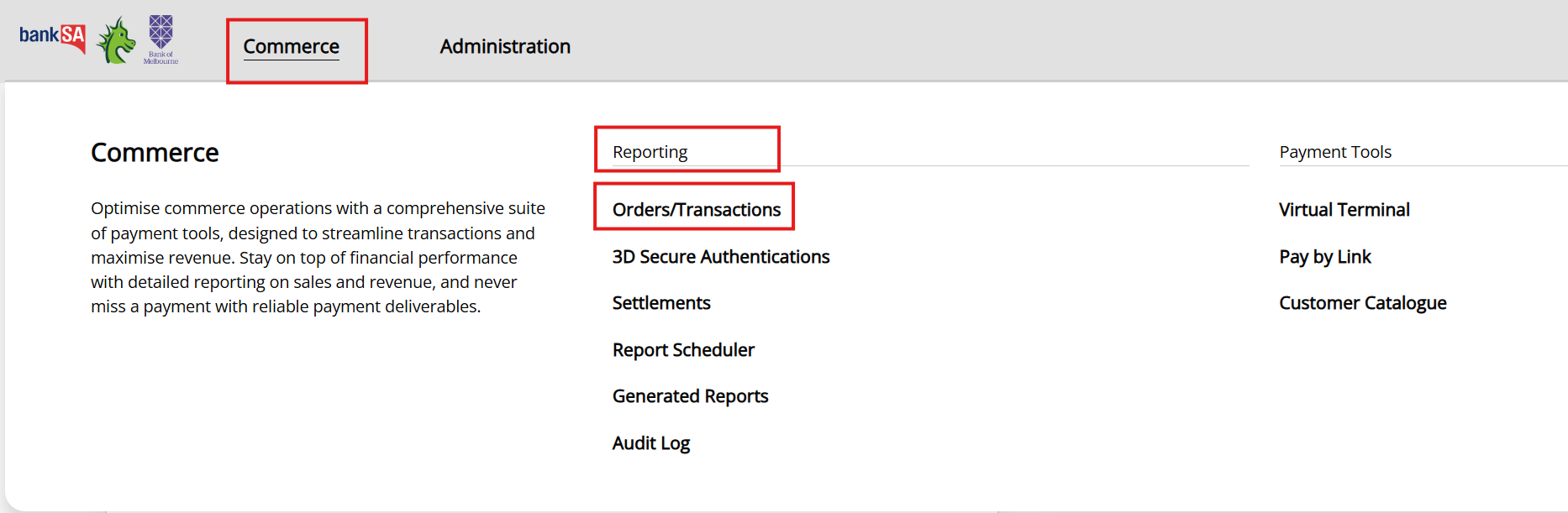
Log in to the OnlinePay dashboard and navigate to Commerce > Reporting > Orders/Transactions.
-
Select the Orders switch, then search or filter the list of orders to locate the transaction you want to refund.
-
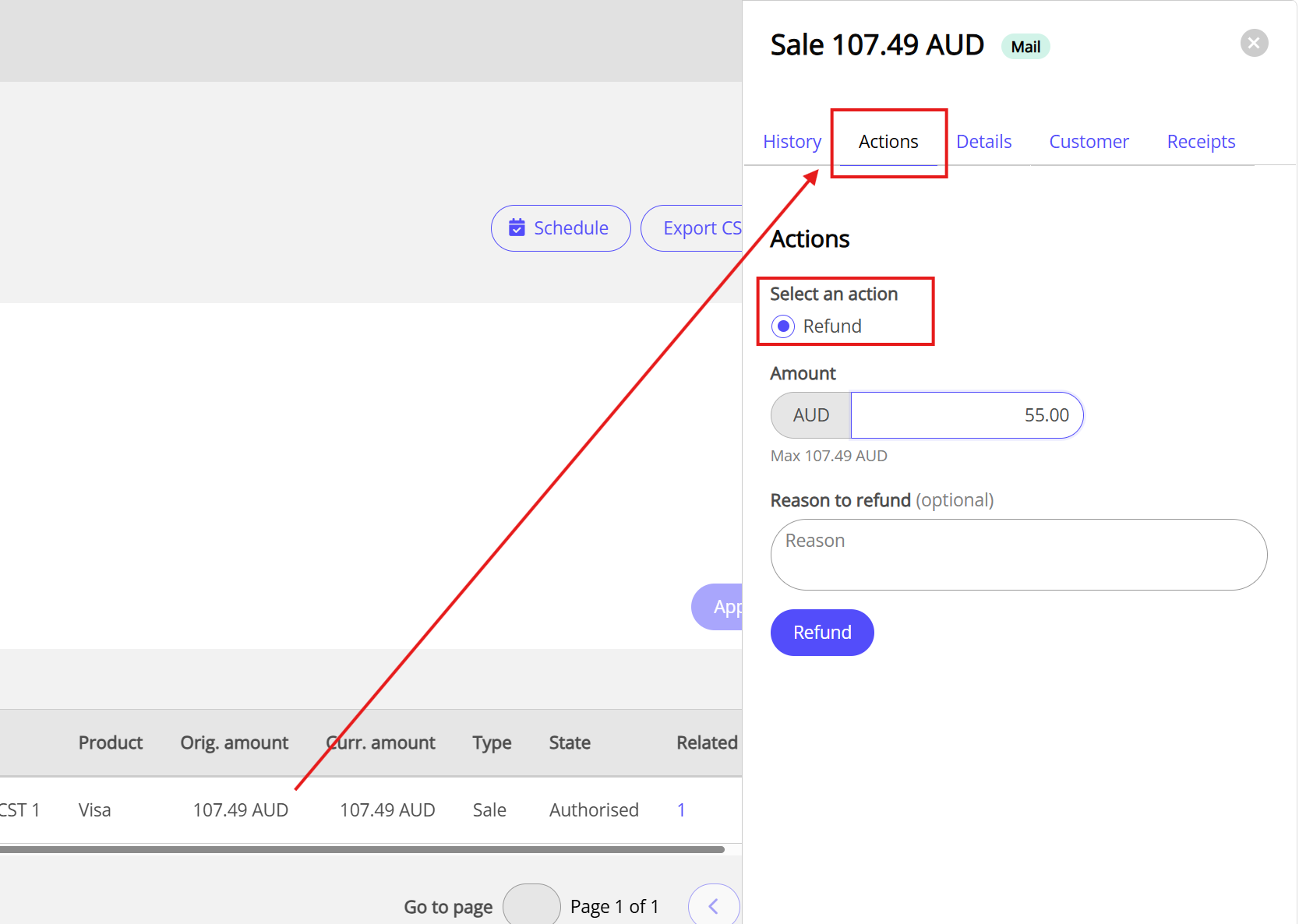
Click on the order to view the transaction details, then click Actions in the details panel.
-
Under Actions, select Refund. This will open the fields to enter the refund amount and reason.
-
Enter the refund amount. This can be the full amount or a partial amount of the original transaction.
-
(Optional) Enter a reason for the refund.
-
Click Refund to process the refund.
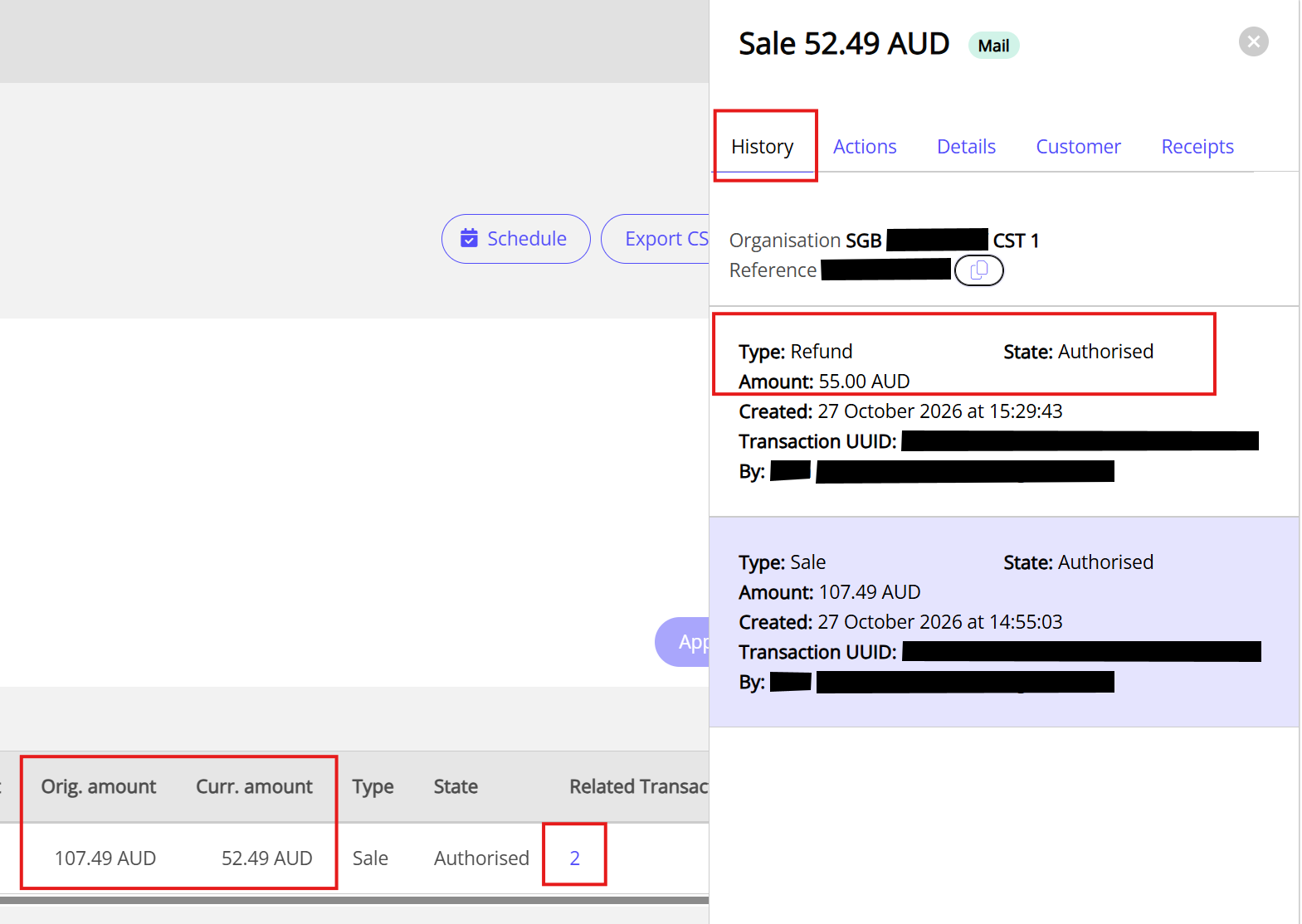
The transaction in the Orders/Transactions list will update to show the original amount and the current amount of the transaction after the refund has been processed.
Send a refund receipt
To send a email copy of the refund receipt to the customer or a merchant, Merchant Supervisor, Merchant Cashier, and Merchant Admin users can follow these steps:
-
Navigate to Commerce > Reporting > Orders/Transactions.
-
Search or filter the list of orders or transactions to locate the transaction you want to issue a receipt for.
-
Click on the order to view the transaction details.
Where there have been multiple transactions, click the Transaction UUID field to select the transaction for which you want to email a copy. -
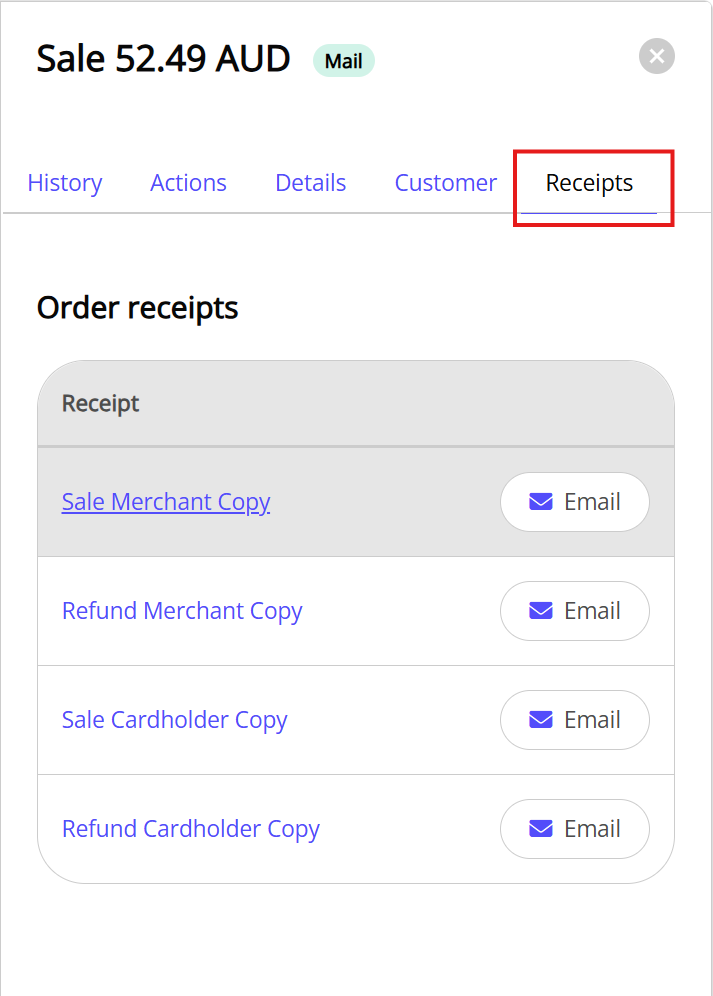
Click Receipts in the details panel.
-
Under Order receipts, click Email next to the merchant or cardholder copies to send a copy of the transaction receipt to the required recipient.
Updated 6 days ago